Working in a Workspace
Switch between your Organization's workspaces, see who is in each one, and, as an org-admin, invite people, move boards in and export a workspace.
Workspaces and Your Organization
An Organization groups its boards into workspaces, such as one per team. Each workspace has its own members and boards, and every board in it is a paid board.
Being in a workspace doesn't open its boards for you. You see a board once you are a member of that board, or if you are an org-admin, who sees them all.
Switching Workspaces
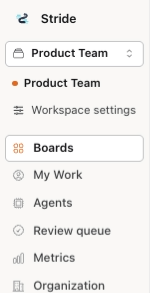
If you belong to an Organization, the workspace switcher sits at the top of the sidebar, showing the workspace you are in. Open it to see your workspaces, and click one to switch. Stride then opens Boards for that workspace.
An org-admin sees every workspace in the Organization. Everyone else sees only the workspaces they have been added to. Your personal boards are not in the list; they stay on the Boards page in every workspace.
When plans are on, someone who doesn't belong to an Organization sees Workspaces with a lock in this spot instead.
Opening Workspace Settings
Click Workspace settings in the switcher. Everyone in the workspace sees two tabs:
- Members: who is in the workspace, with their email and role.
- Boards: the workspace's boards you can see.
Org-admins also see Invitations, Tokens and Export, and can change roles and remove people. For everyone else these pages are read-only.
Member or Guest
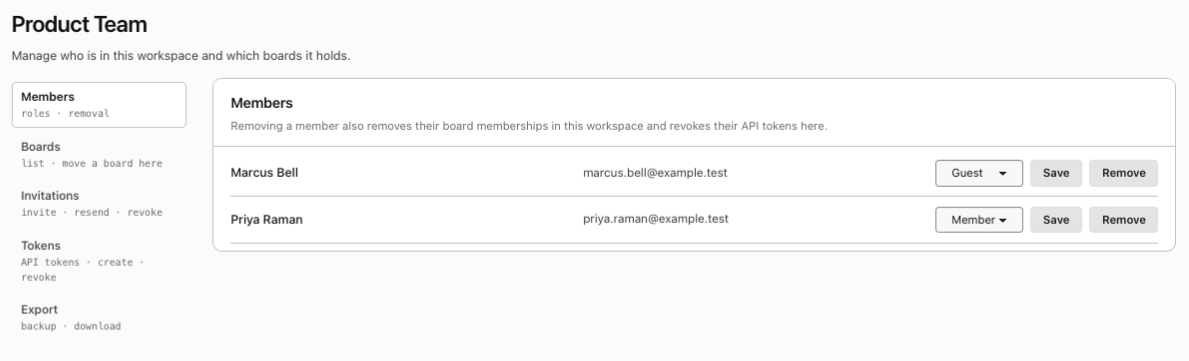
Everyone in a workspace is a Member or a Guest:
- A Member can create boards in the workspace. A board you create while the workspace is selected goes into it.
- A Guest works on the boards they are invited to, but can't create boards there. A board a Guest creates goes into their personal workspace.
An org-admin changes a role with the role list and Save. Remove takes someone out of the workspace, which also removes them from its boards and revokes their API tokens for it. Organization roles, such as who is an org-admin, are managed by Stride's admins, not here.
Moving a Board Here
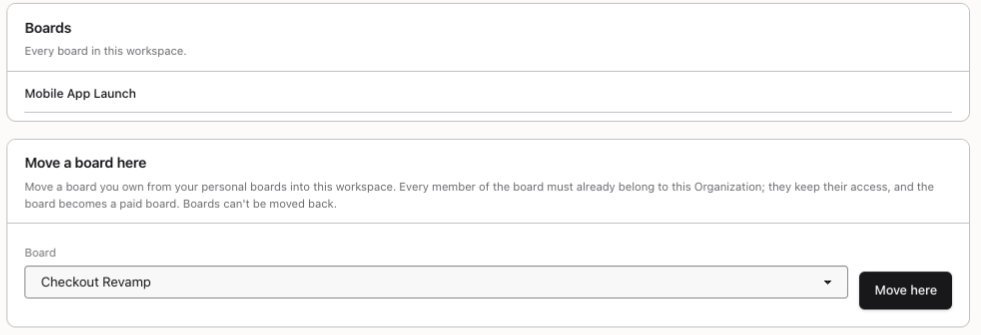
On Boards, an org-admin sees every board in the workspace and the Move a board here card. Choose one of your personal boards and click Move here.
You can move a board only if you own it and everyone on it already belongs to the Organization. If someone doesn't, Stride names them, so you can remove them from the board or invite them to the workspace first. The members keep their access, and the board becomes paid. A board can't be moved back, or from one workspace to another.
Inviting People
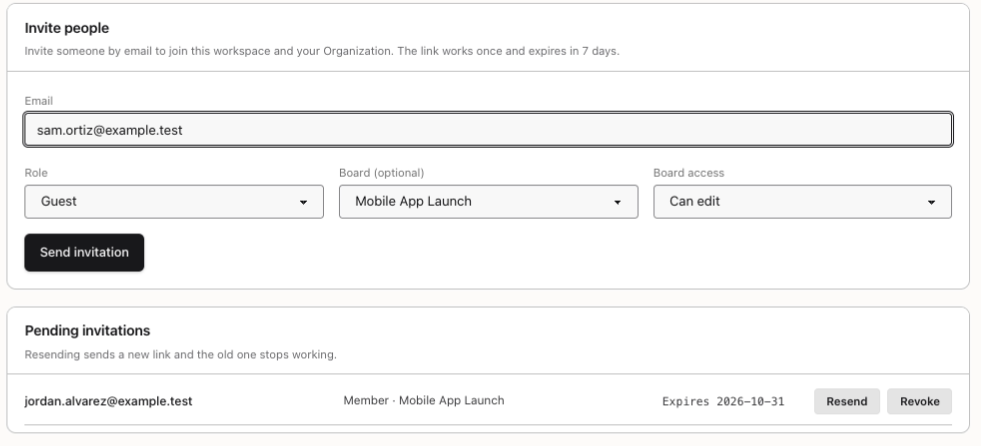
On Invitations, an org-admin fills in Invite people: the Email, the Role, and optionally a board from Board (optional) with its Board access (Read only or Can edit). Click Send invitation, and Stride emails a link that works once and expires in 7 days.
Accepting makes the person a member of the Organization and of this workspace. Each person can belong to one Organization.
Pending invitations lists the links nobody has used yet. Resend sends a new link and stops the old one; Revoke stops the link for good. Accepting an Invitation shows what the person sees.
Workspace Tokens
On Tokens, an org-admin can Create a workspace token: one API token for every AI Optimized board in the workspace that you can modify, so an agent doesn't need a token per board. It acts as you and expires in 90 days. Setting Up API Authentication explains how agents use it.
Exporting a Workspace
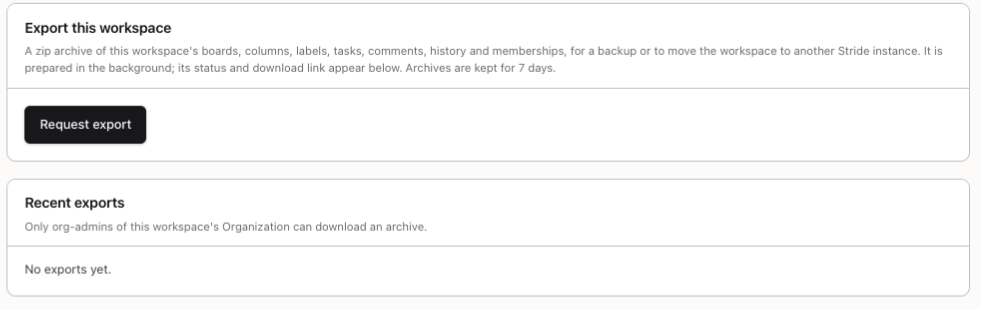
On Export, an org-admin clicks Request export to get a zip archive of the workspace's boards, columns, labels, tasks, comments, history and memberships, for a backup or to move to another Stride instance.
Stride prepares it in the background, so you can leave the page. When it is ready, click Download. Archives are kept for 7 days, and only org-admins can download them.
When Someone Leaves
When an org-admin removes someone from a workspace, they lose its boards and their API tokens for it straight away. A workspace token stops working when the org-admin it acts as leaves the workspace or the Organization.
Changing a Member to a Guest also revokes any open invitation sent to that person in the workspace, so an old link can't make them a Member again.
You're all set!
You've completed all the steps in this guide.