Accepting an Invitation
Open the link from an invitation email, join a workspace or a board, and find out what to do when a link doesn't work.
Two Kinds of Invitation
Stride sends two kinds of invitation by email:
- From an org-admin, to join a workspace and its Organization, sometimes with access to one board.
- From a board's owner, to join just that board. This happens when they invite an email address that has no account yet; see Inviting Team Members.
Either way, the email holds a link that works once and expires after 7 days.
Opening the Link Without an Account
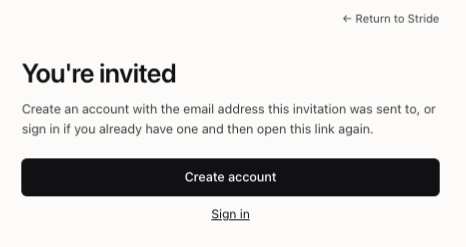
If you aren't signed in, the link opens You're invited.
- New to Stride? Click Create account and sign up with the same email address the invitation went to. The invitation is accepted when you confirm your email.
- Already have an account? Click Sign in, then open the link from the email again.
Accepting
Signed in with the invited email address, the link shows what you are joining, such as the workspace and its Organization, or the board. Nothing changes until you click Accept invitation.
Stride then opens the board you were given, or your Boards page if the invitation had no board.
When the Link Doesn't Work
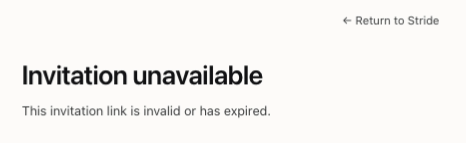
Invitation unavailable means the link can't be used. This happens when it has expired, was revoked or resent, or was already used, or, for a workspace invitation, when you already belong to a different Organization.
If you are signed in with another account, the page shows the email you are signed in as, with Log out. Sign out, sign in with the invited address, and open the link again. Otherwise, ask the person who invited you to send a new invitation.
When a Free Board Is Full
When plans are on, a free board holds 3 people. If the board filled up after you were invited, clicking Accept invitation shows This board is full. Your invitation stays open, so ask the board owner to make room, then open the link again before it expires.
After You Join
If you joined a workspace, you are now a member of its Organization. The workspace switcher appears at the top of the sidebar, and Workspace settings shows who else is in the workspace. Working in a Workspace explains what you can do there.
If you joined a single board, it appears on your Boards page with the others.
You're all set!
You've completed all the steps in this guide.