Staying Informed With Notifications
What Stride notifies you about, the bell and the notifications page, choosing what reaches you, the weekly digest, and unsubscribing from email.
What Notifies You
Stride notifies you when something on your boards needs you:
- Review requests: a task reaches Review. The board's owner and every member with edit access are told.
- Review results: a reviewer approves your task or asks for changes. The person who completed the task is told, or its assignee.
- Task assignments: someone else assigns a task to you.
- Unclaimed tasks: an agent releases a task. The person whose token released it and the task's creator are told.
- Expired claims: an agent's claim on your task runs out before the work is done.
- Completed goals and After-goal hook failures: for the goal's creator and its assignee.
- Delivery target status: a target you own becomes at risk or misses its date.
- Board access changes: someone else adds you to a board, removes you, or changes your access.
- Mentions: someone mentions you in a comment, as Commenting and Mentioning explains.
Comments also has a row in your preferences, but a comment with no mention notifies nobody.
Notifications and Plans
When Stride's plans are switched on, notifications need two things. You need to belong to an Organization to see the bell's count, read your notifications, get email and change your preferences. The board has to be in an Organization too: a free board sends no notifications at all, even to Organization members.
Without an Organization, the bell shows a lock and the notifications page says Available to organizations. Tasks waiting for you are still listed in the Review queue and My Work.
When plans are switched off, everyone gets every notification. Free and Paid Boards explains plans.
The Bell
The bell at the top of the page shows how many notifications you haven't read, up to 99; above that it shows 99+. The count updates as notifications arrive, without reloading the page. Click the bell to open your notifications.
The Notifications Page
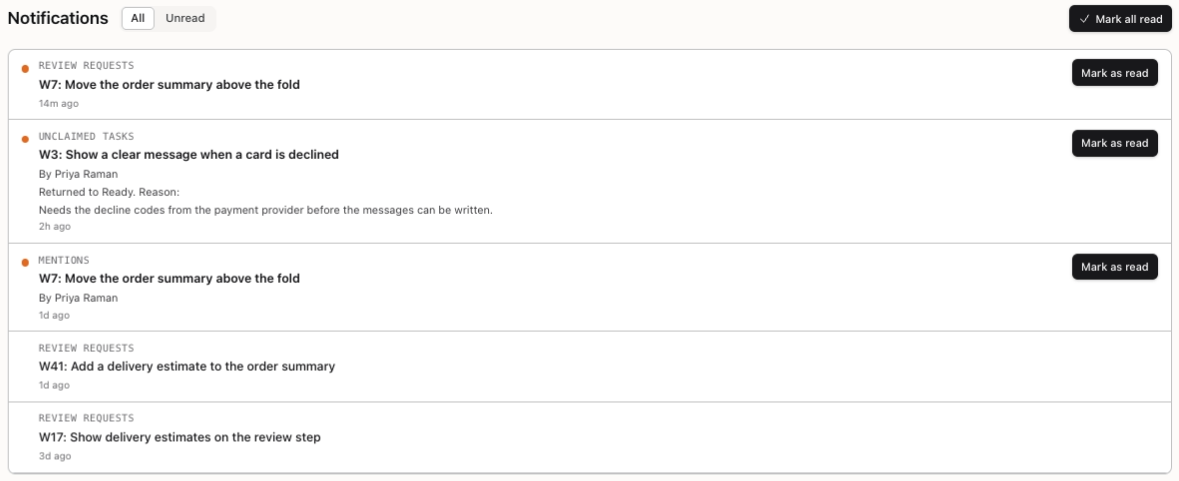
Notifications lists the newest first, 25 at a time; Load more shows the next 25. Switch between All and Unread at the top.
Each notification shows what kind it is, what happened, who did it and how long ago. An orange dot marks one you haven't read. Click a notification to open the task or page it's about, which also marks it read. Mark as read marks one without opening it, and Mark all read marks every one.
Choosing What Reaches You
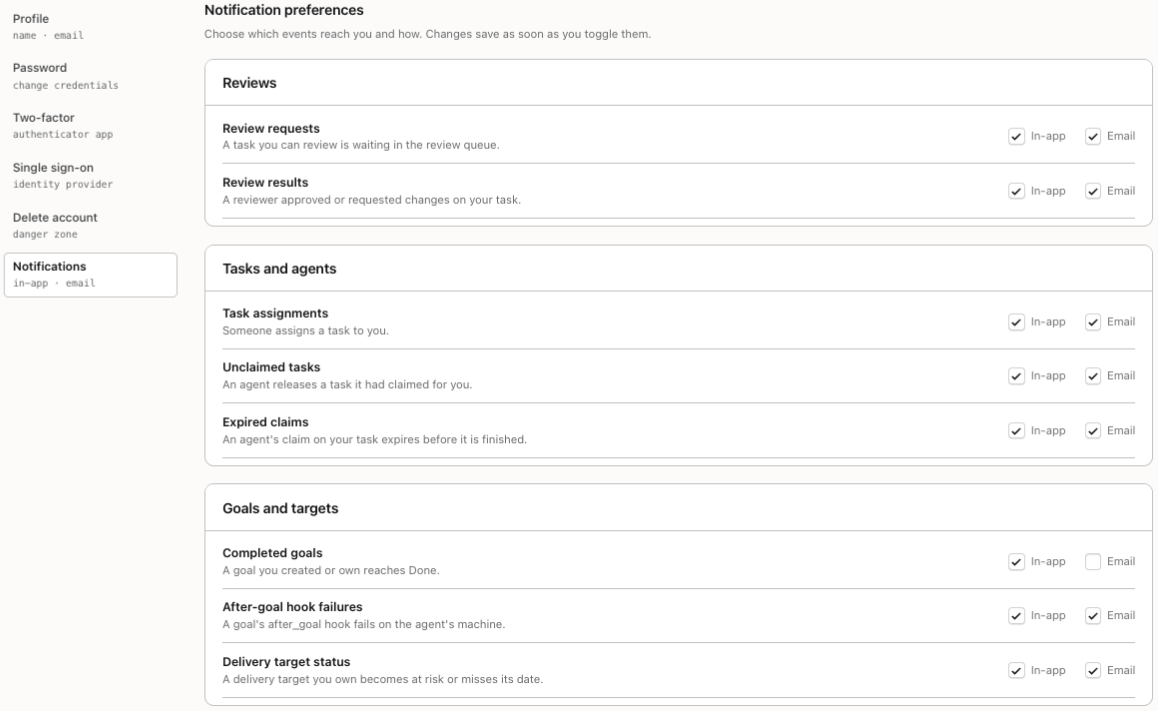
Open your settings and click Notifications to reach Notification preferences. The events are grouped under Reviews, Tasks and agents, Goals and targets, Board access and Comments and mentions.
Each event has an In-app switch for the bell and the notifications page, and an Email switch. A change saves as soon as you make it.
Everything is on until you change it, except the email for Completed goals and Comments. While plans are switched on, only Organization members can change their preferences.
The Weekly Digest
Under Weekly digest, Email me a weekly summary of activity on my boards is on by default. The digest is sent on Mondays at 13:00 UTC and covers the week before: the tasks done, the goals completed and the tasks waiting for review, board by board.
A week with nothing to report sends no email. The digest arrives only by email, never in the bell. While plans are switched on, it counts only boards in an Organization.
Unsubscribing From Email
Every notification email ends with Unsubscribe from these emails and Manage notification preferences.
The unsubscribe link opens a page that asks you to confirm; click Unsubscribe to stop that kind of email. You don't need to sign in. It turns off email for that one event only, and In-app notifications are not affected. The link works for 90 days, and unsubscribing never needs a paid plan.
If your mail app shows its own unsubscribe button, it does the same in one click.
You're all set!
You've completed all the steps in this guide.