Connecting Webhooks, Slack and Discord
Send a board's task events to your own service as signed webhooks, or as messages in a Slack or Discord channel.
Who Can Set Up Integrations
Only the board's owner sees the Integrations tab, next to Settings; an org-admin counts as the owner of their Organization's boards. Members can't open it, even with edit access. It works on every kind of board.
When Stride's plans are switched on, integrations need the board to be in an Organization. On a free board the window says Available to organizations, every endpoint offers only Deliveries and Delete, and nothing is sent. Endpoints that are switched on show Paused and start sending again once the board moves into an Organization; a disabled endpoint stays off until you enable it. Free and Paid Boards explains plans.
Adding an Endpoint
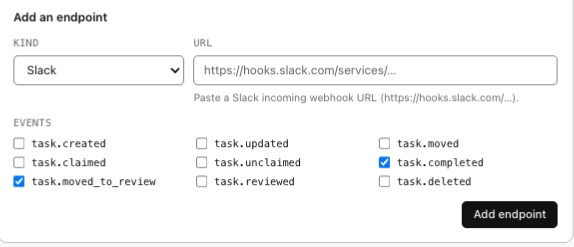
Click Integrations to open the window, then fill in Add an endpoint:
- Kind: Generic webhook sends a signed JSON request to your own service. Slack and Discord post a message in a channel.
- URL: an https address that reaches the public internet. For Slack, paste an incoming webhook URL from
hooks.slack.com; for Discord, the webhook URL you copied from the channel's settings. - Events: the task events to send, such as
task.created,task.moved_to_reviewandtask.completed. Pick at least one.
Click Add endpoint. A board can have as many endpoints as you need.
Managing Endpoints
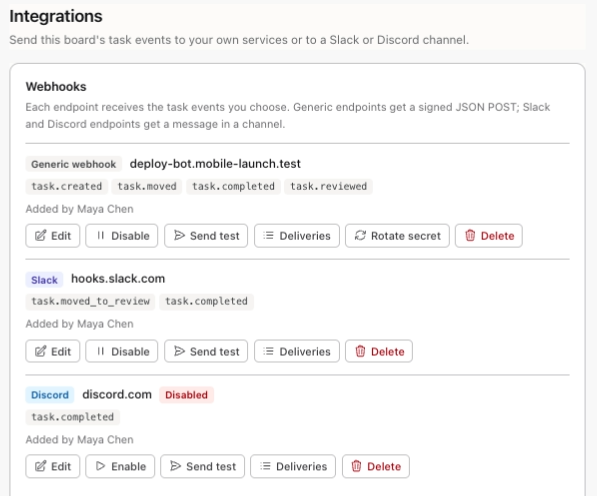
Each endpoint shows its kind, the host it sends to, its events and who added it. The full URL is never shown again, because a Slack or Discord URL works like a password.
- Edit changes the URL or the events. The kind can't change, and leaving the URL blank keeps the current one.
- Disable stops sending without losing the endpoint; Enable starts it again.
- Delete removes the endpoint and its delivery log.
If the person who added an endpoint loses access to the board, it switches off. Enabling it again makes you its owner. Not sending means the account that added it has been disabled.
The Signing Secret
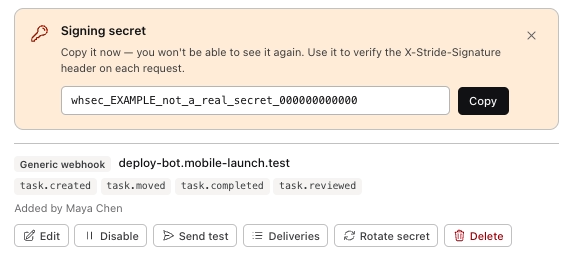
A generic webhook signs every request. Right after you add one, the window shows its Signing secret, starting with whsec_, once. Click Copy and store it with your service; you can't see it again.
Rotate secret replaces the secret, and the old one stops working at once. Use it if the secret leaks or the endpoint moves to a different service. Slack and Discord messages aren't signed, so those endpoints have no secret.
Testing and the Delivery Log
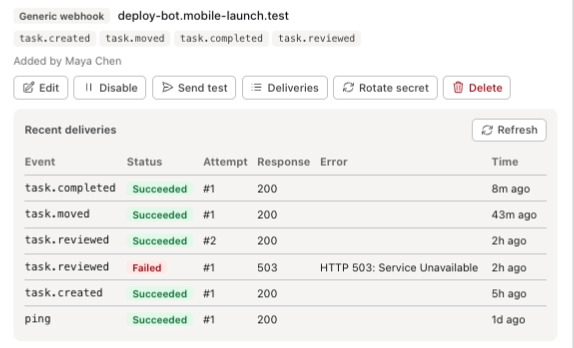
Send test sends a ping event to an enabled endpoint. Click Deliveries to open Recent deliveries, and Refresh to see new attempts.
The log shows the 20 most recent attempts, with the Event, Status (Succeeded, Failed or Pending), the Attempt number, the Response code, any Error and the Time. Each retry gets its own row.
A failed delivery is retried, up to 8 attempts over about an hour. A 4xx response isn't retried, except 408 and 429.
Verifying Signatures
Each generic request carries X-Stride-Event, X-Stride-Delivery (the same on every retry, so you can skip duplicates) and X-Stride-Signature, which looks like t=1767225600,v1=5257a869….
To check it, compute an HMAC-SHA256 of the timestamp, a full stop and the raw request body, keyed with your signing secret, and compare it with v1 in constant time. Reject a timestamp more than 5 minutes old. Reply with a 2xx within 10 seconds.
The webhooks reference has the payloads and verification code in Python and Node.
You're all set!
You've completed all the steps in this guide.