Commenting and Mentioning
Discuss a task in its comments, mention a teammate so they're notified, and edit or delete what you wrote.
Where Comments Are
Comments is at the bottom of a task's details and of its edit form. Comments are listed oldest first. When there are none, it says No comments yet.
The list updates for everyone who has the task open. A comment an agent posts shows the agent's name, with the person whose API token it uses.
Who Can Comment
Every member of the board can comment, including members with read-only access, because a comment discusses a task without changing it.
Someone viewing a shared board without being a member can read the comments but has no box to write one. A member who is removed from the board can no longer comment or edit their comments.
Writing a Comment
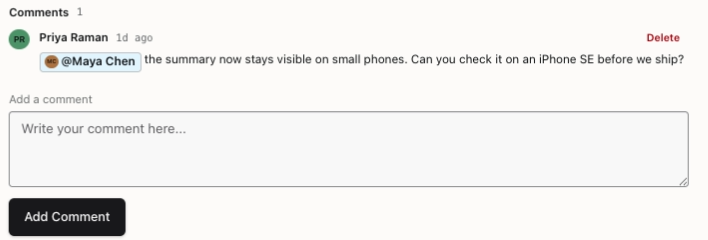
Type in Add a comment and click Add Comment. A comment can be up to 10,000 characters.
Mentioning Someone
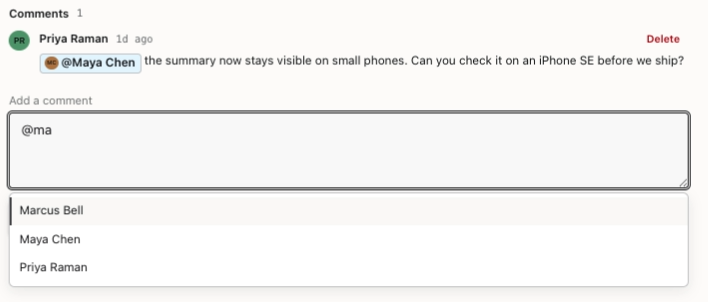
Type @ at the start of the comment or after a space. A list of up to 8 board members appears, and it narrows as you type part of a name or email. Use the arrow keys to pick someone and press Enter or Tab to add them, or press Esc to close the list.
Only a person picked from the list is mentioned; typing @ and a name yourself leaves plain text. You can mention any active member of the board, whatever their access, up to 20 people in one comment. Once posted, a mention shows as a chip with the person's current name.
Who Gets Notified
Each person you mention gets a notification, except you. Editing a comment notifies only the people the edit adds, so fixing a typo notifies no one. The notification names the task but doesn't copy the comment.
A comment with no mention notifies nobody, even though Notification preferences lists a Comments row.
Mentions arrive in Stride and by email. To change that, open Notification preferences and, under Comments and mentions, switch Mentions off for In-app or Email.
The notification opens the task's edit form, which needs modify access. A read-only member lands on the board instead and can open the card from there.
Notifications Need a Paid Board
When Stride's plans are switched on, a free board sends no notifications. On a paid board, a mentioned person also needs to belong to an Organization to get the email, and only Organization members can change their notification preferences.
Comments and mentions themselves work on every board. Free and Paid Boards explains plans.
Editing and Deleting
Click Edit on your own comment, change it and click Save, or Cancel. Only the person who wrote a comment can edit it, and an edited comment says so.
Click Delete to remove a comment. You can delete your own comments, and the board's owner can delete anyone's; an org-admin counts as the owner of their Organization's boards. Stride asks you to confirm, and a deleted comment can't be brought back. There's no time limit on either.
You're all set!
You've completed all the steps in this guide.