Reading a Task's Details
What each section of a finished agent task means, and how to use the test matrix and the diff when you review the work.
Opening a Task
Click a task's card on the board to open its details. A goal's card opens the goal's own page instead.
Anyone who can open the board can read a task's details, including someone signed in who is viewing a shared board. Edit task in the side panel appears only for the board's owner and members with modify access.
A section appears only when the task has something to show in it. Most sections also need the board's owner to turn them on under Field visibility, as Managing Board Settings explains. Only Acceptance Criteria is on by default.
The Top and the Side Panel
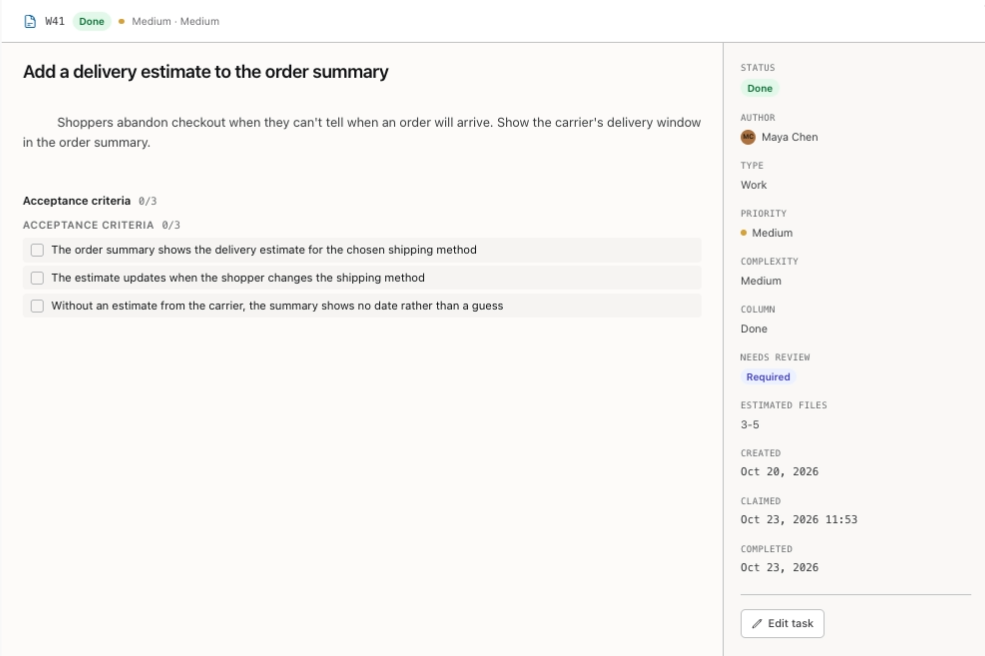
The top of the details shows the task's ID, its status, priority and complexity, then its title and description.
The side panel lists Status, Column, Author, Priority, Complexity, Estimated files and Needs review, which says Required when a person must approve the work and Auto when it goes straight to Done. Created, Claimed and Completed show when each happened.
What Was Asked
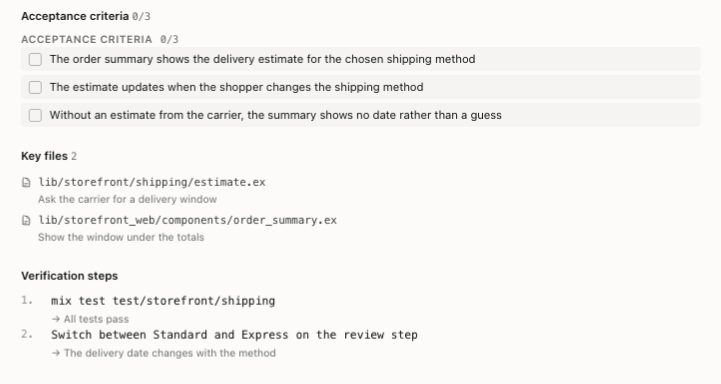
These sections hold what the task asked for:
- Why, What and Where: the reason for the work, the change and where it goes. They need the Context (Why/What/Where) toggle.
- Acceptance criteria: the definition of done. The list isn't ticked off here; the reviewer's verdict on each criterion is in the Review queue.
- Key files, Verification steps, Pitfalls, Security considerations and Testing strategy, each behind its own toggle.
- Patterns to follow, Database changes and Validation rules, which share the Technical Notes toggle.
- Out of scope, Technology requirements, Error handling, Integration points and Technical details, each behind its own toggle.
- Dependencies: the tasks this one waits for. It shows whenever there are any, with no toggle. See Organizing With Dependencies.
The Behaviour/Test Matrix
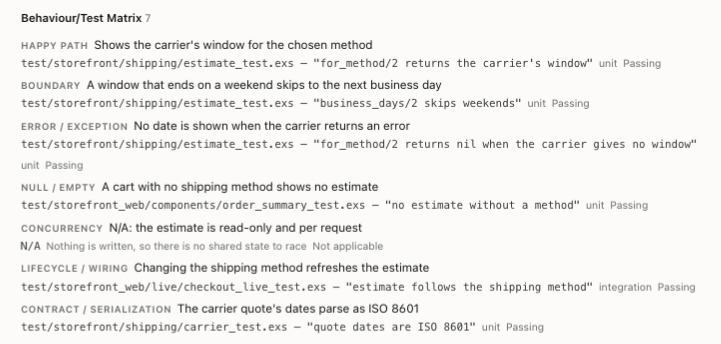
Behaviour/Test Matrix lists the behaviours the work had to cover, one row each, under seven headings: Happy path, Boundary, Error / exception, Null / empty, Concurrency, Lifecycle / wiring and Contract / serialization.
Each row names the test that covers the behaviour, or the reason no test applies, with the kind of test and a status: Planned, Passing, Failing or Not applicable.
When you review, check that every row is Passing or has a reason that makes sense, and look for each named test file under Changed files. A row still Planned or Failing on a finished task is worth a question. The section needs the Behaviour/Test Matrix toggle.
Observability
Observability shows what the work should measure and record: Telemetry, Metrics and Logging. It needs the Observability toggle, which is off by default.
While plans are on, Telemetry and Metrics are paid fields, so a free board doesn't show them. The values stay on the task, and Logging still shows. Free and Paid Boards explains plans.
What the Agent Reported
Once a task reaches Review, it shows what the agent reported:
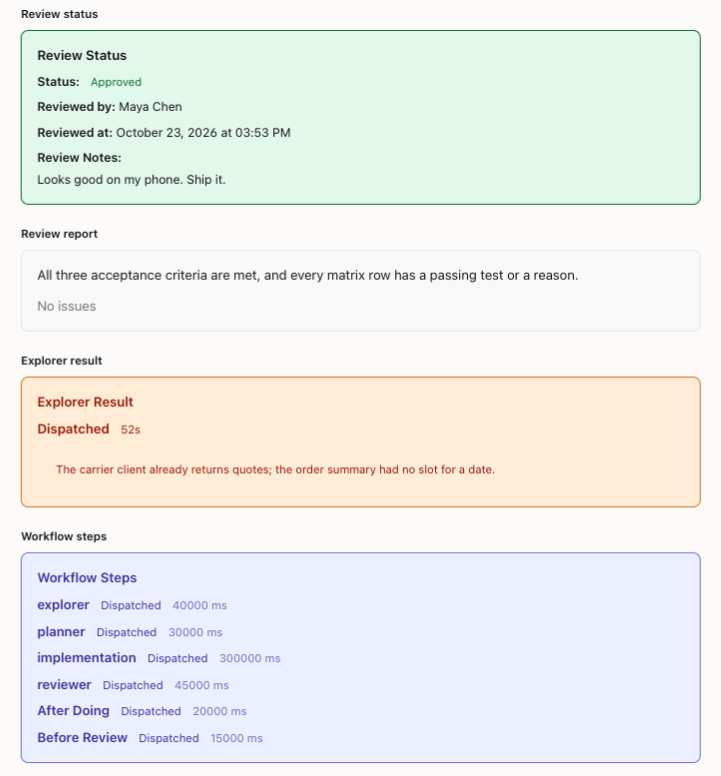
- Explorer result: whether the agent sent a helper to read the code before starting (Dispatched or Not dispatched), how long it took, and what it found or why it was skipped.
- Review report: the agent reviewer's summary and its issues under Critical, Important and Minor, or No issues.
- Workflow steps: each step of the agent's workflow, whether it ran, and how long it took.
When the task needs review, Review status shows whether it was approved, by whom and when, with any notes the reviewer left.
Completion and Actual vs Estimated
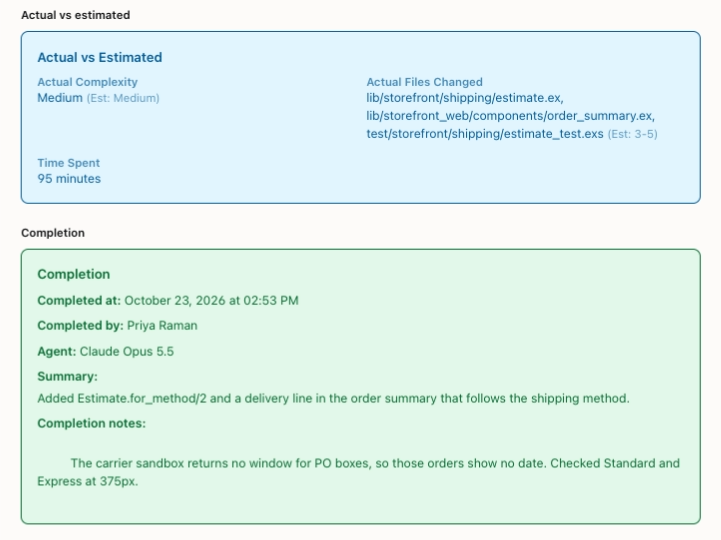
Completion shows when the task was finished, who finished it, the agent, its summary and its completion notes. It appears once the task reaches Review, and anyone who can open the board can read it.
Actual vs estimated appears once the task is Done. It puts Actual Complexity, Actual Files Changed and Time Spent next to what was estimated, which helps you size the next task. See Using Complexity and Priority.
Changed Files and the Diff
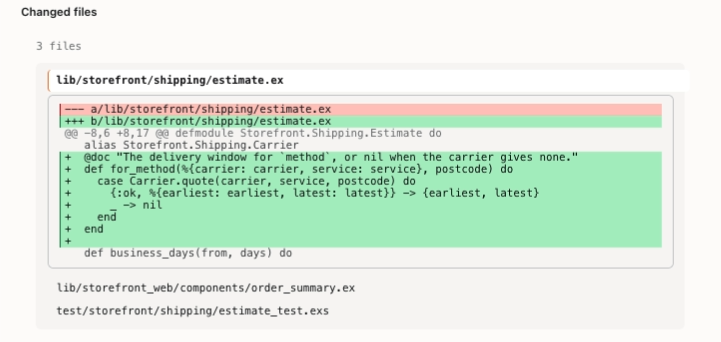
Changed files lists every file the agent changed. Click a file to open its diff under it, and click it again to close it.
A long diff stops with Diff truncated at 500 lines. and, for a GitHub repository, offers View full diff in repo. A file without a diff says No diff available for this file., and an image or other binary file says Binary file changed — no diff preview.
Read the diff with the acceptance criteria and the matrix beside it: each criterion should show up in the change, and each test the matrix names should be in the list.
History, Comments and Your Decision
History records when the task was created, moved, reassigned and reprioritized. Comments is at the bottom, as Commenting and Mentioning explains.
The details are for reading. To approve the work or ask for changes, use the Review queue, as Reviewing Completed Work explains.
You're all set!
You've completed all the steps in this guide.