Administering Your Organization
For org-admins: open the Organization console, see your details, remove members, and create, rename and archive workspaces.
Who This Guide Is For
This guide is for org-admins. If you are one, the sidebar shows Organization, which opens the Organization console. Members don't see the link, and opening the console without being an org-admin sends you back to your boards.
Some changes are made by Stride staff rather than org-admins: creating an Organization, changing its details, and appointing or removing org-admins.
The Organization Console
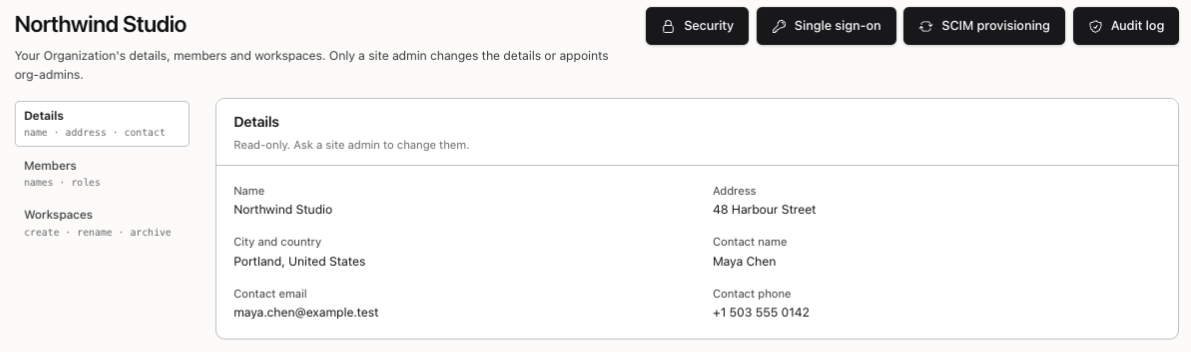
The console has three tabs:
- Details: your Organization's name, address and contact.
- Members: everyone in the Organization.
- Workspaces: where the Organization's boards live.
The buttons at the top open the other org-admin pages: Security, Single sign-on, SCIM provisioning and Audit log. The rest of this group covers each of them.
Details
Details shows the Name, Address, City and country, Contact name, Contact email and Contact phone Stride has on file. They are read-only here. To change them, ask Stride staff.
Members
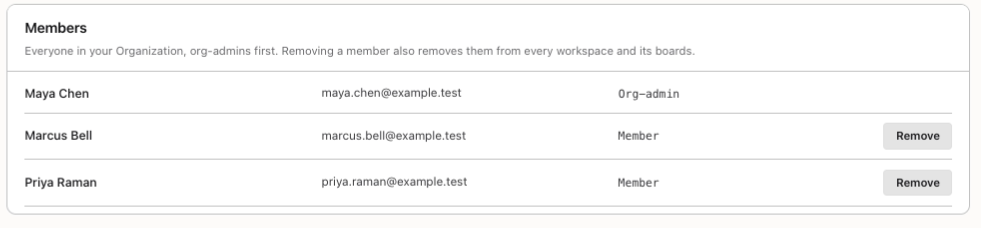
Members lists everyone in the Organization, org-admins first, with each person's role: Org-admin or Member. Disabled marks an account that can't sign in, and Unconfirmed one that hasn't confirmed its email address yet.
Remove takes a member out of the Organization. They leave every one of its workspaces, lose their board memberships and API tokens there, and their open tasks are unassigned. If your Organization uses single sign-on, a removed person can sign in again through it until your identity provider stops them.
Org-Admins
Org-admins have no Remove button. Stride staff appoint and remove org-admins.
An Organization that has other members always keeps at least one enabled org-admin, so someone can always manage it. Stride refuses to remove, disable or delete its last one until another org-admin is appointed.
Workspaces
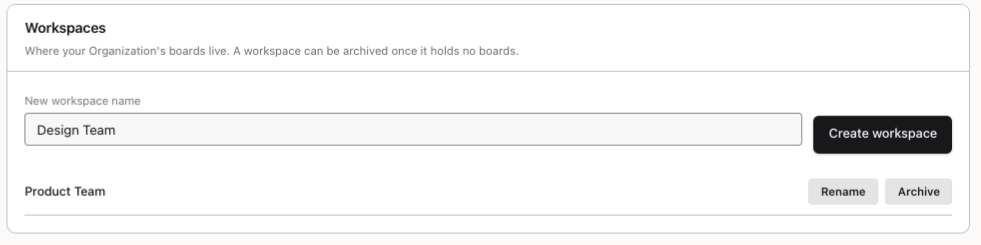
On Workspaces, type a New workspace name and click Create workspace. No two workspaces in the Organization can share a name, ignoring capitals.
- Rename changes a workspace's name. Type the new one in Workspace name and click Save, or Cancel.
- Archive removes a workspace that no longer holds any boards. Boards can't be moved out of a workspace, so their owners must delete them first. Archiving revokes the workspace's API tokens and open invitations, frees its name, and can't be undone.
Inside a Workspace
Who is in each workspace, invitations, workspace tokens and exports are managed from the workspace itself. Working in a Workspace covers those pages.
You're all set!
You've completed all the steps in this guide.