Reading the Organization Audit Log
For org-admins: find security events in your Organization's audit log, filter them, and export them as CSV or JSON.
What the Audit Log Records
The audit log keeps a record of security events in your Organization: changes to the Organization and its security policy, org-admins being appointed, members and workspaces being added or removed, single sign-on, domain and SCIM events, and refused requests. Only org-admins can open it.
Opening the Audit Log
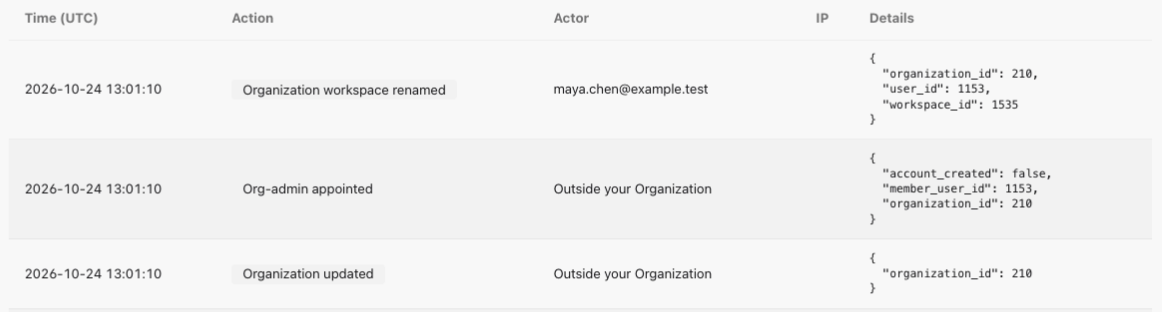
In the Organization console, click Audit log. Organization audit log lists events newest first, with the Time (UTC), Action, Actor, IP and Details of each. All times are in UTC. Back to Organization returns to the console.
Filtering
Choose an Action to see one kind of event. The list offers only the actions that have happened in your Organization, and All actions shows everything again. Set From (UTC) and To (UTC) to limit the dates.
Clear filters removes them all. There is no filter by person, on purpose.

Paging
The log shows 50 events at a time. Click Older events to go further back, and use the newest-page button to return to the top. Changing a filter starts again from the newest events.
Actions Outside Your Organization
Some events are made by people who aren't in your Organization, such as Stride staff appointing an org-admin. Their events still appear, but Outside your Organization replaces their name, and their email and IP address are not shown.
Events with no person behind them, such as a SCIM sync from your identity provider, show no actor.
Exporting
Click Export CSV or Export JSON to download the events that match your filters. An export holds at most the 50,000 newest matching events, so narrow the dates for a longer history.
You can export 10 times an hour, and each export is itself recorded in the log.
How Long Events Are Kept
Events are kept forever unless your Organization sets a retention period. Setting Your Organization's Security Policy explains how.
You're all set!
You've completed all the steps in this guide.