Guide
2 min read
Adding Team Members to Your Board
Learn how to add collaborators to your board and set their access permissions.
1
Access Board Settings
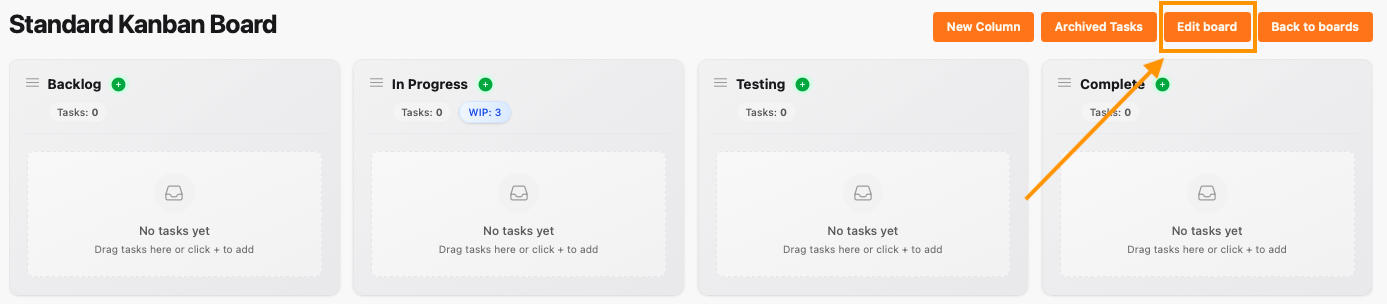
From your board view, click the Edit board button in the top right corner to access board management options.
Important: Users must already have a Stride account to be added to your board. Team members need to register at Stride before you can add them as collaborators.
2
Search for Users
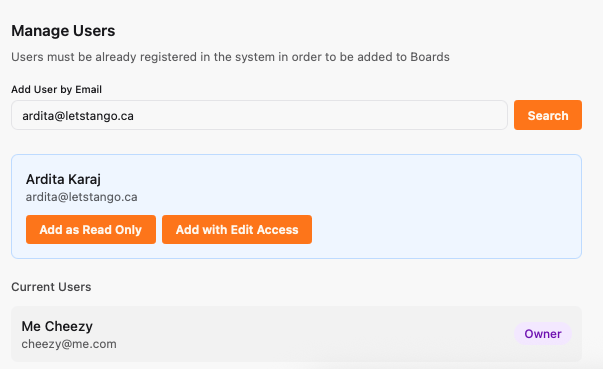
In the board settings form, locate the Board Users section. Use the search field to find registered Stride users by their email address or name. Select the user from the search results.
3
Set Permission Level
After selecting a user, choose their permission level:
- Can View: Read-only access to view tasks and board
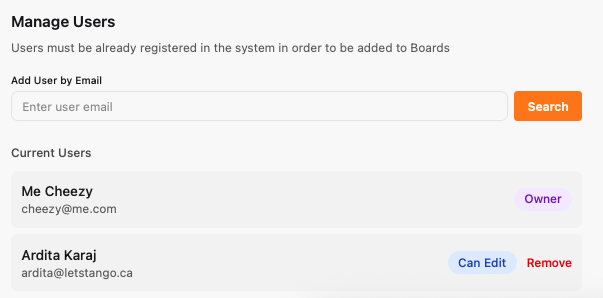
- Can Edit: Can create, edit, and manage tasks
- Owner: Full control including board settings and user management
You're all set!
You've completed all the steps in this guide.