Watching Your Agents
See what every agent is doing across your boards, spot stuck work and at-risk targets, and step in with Reassign or Reprioritize.
Opening the Agents Page
Click Agents in the sidebar. Everyone signed in has it, on every plan.
The page covers tasks on the boards you belong to, whatever your access, plus the boards an org-admin manages. A shared board you never joined isn't included, and goals aren't counted as agent work.
An agent here is the name an AI agent puts on the tasks it creates or completes, together with the person running it. The same agent run by two people shows up twice.
The Header
Agent activity sums up your agents. Narrow it with the two menus at the top: one board or All boards, and Today, Last 7 days, Last 30 days, Last 90 days or All time, which is where it starts.
- Working: agents holding a task in Doing.
- Waiting: agents with a task in Review and none in Doing.
- Idle: everyone else.
- Stuck: agents with a Doing or Review task that hasn't moved for over an hour.
The tiles on the right count what was created, claimed, completed and approved today. Delivery trends, further down, charts completions day by day.

Delivery Health
Delivery health counts the delivery targets you can see by status: On-track, At-risk, Missed and Complete. With none, it says No delivery targets yet. Planning With Targets explains targets and how their status is worked out.

The Roster and the Feed
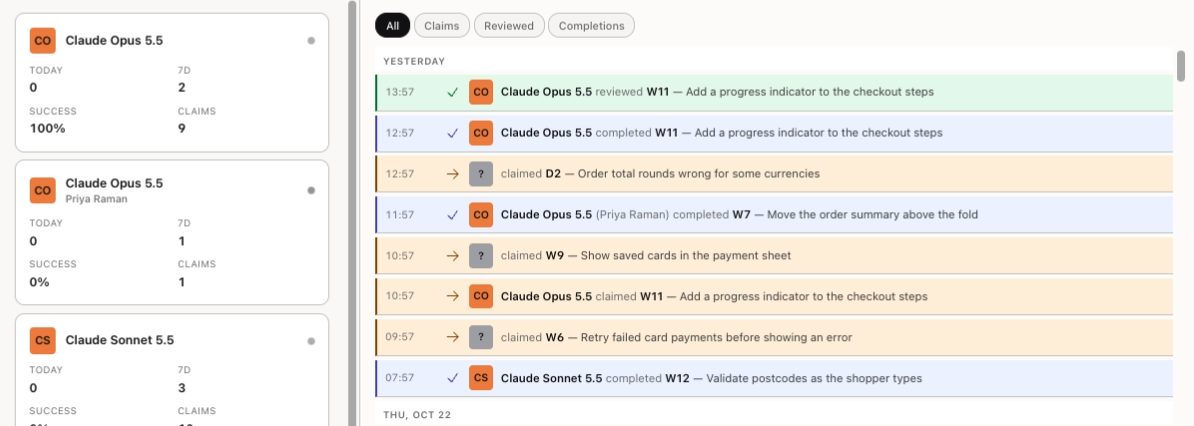
On the left, a card for each agent shows whether it is Working, Waiting for review or Idle, with its tasks Today, its Success rate and its Claims. The most recently active agents come first, and agents working on a goal of an at-risk target move to the top. An agent with no activity for 14 days folds into a Dormant group at the bottom.
On the right, the feed lists the latest 200 events, grouped under Today, Yesterday and earlier dates. Use All, Claims, Reviewed and Completions to filter it. Newly created tasks appear only under All. The page updates by itself as agents work.
Looking at One Agent
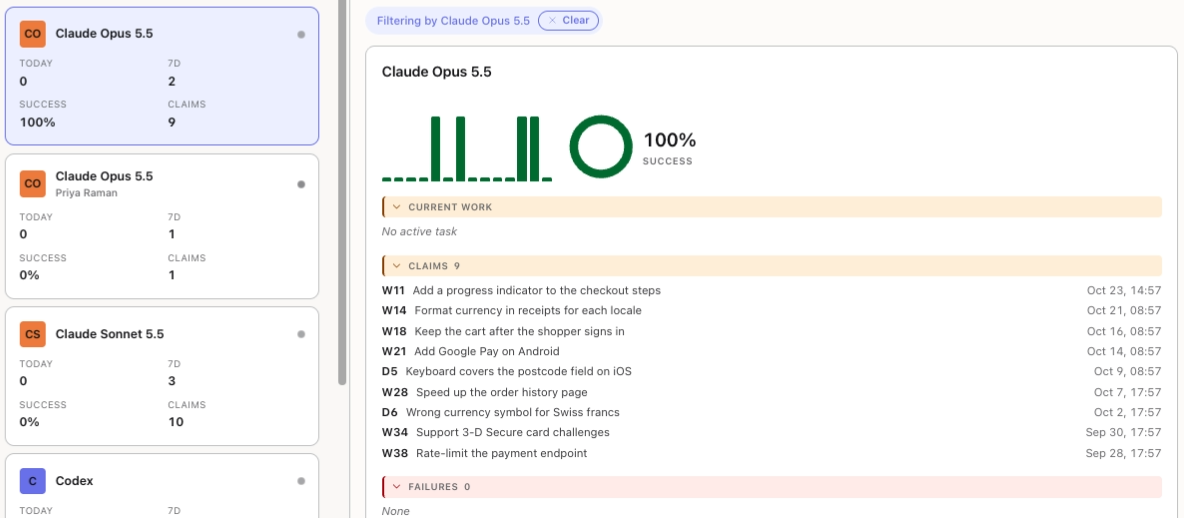
Click an agent's card to filter the feed to that agent and open its details:
- Current work: the task it holds now.
- Claims: the tasks it has claimed.
- Failures: its tasks whose review was rejected.
- Recent activity: its last 20 events.
Click the card again, or Clear, to see every agent. The details are for reading only.
Why Targets Are at Risk
A target turns At-risk when its work falls behind or its estimate slips, as Planning With Targets explains. When an at-risk target has a stalled goal or an estimate after its date, Why targets are at risk appears on the page and gives the reason. It lists each stalled goal with the agents holding it up, and says when the estimate is after the target date. A goal has stalled when an agent working on it is Stuck or Dormant.
Who Can Step In
Next to a stalled goal, Reassign and Reprioritize let you get it moving again. They appear only for:
- the target's owner, if they also belong to the goal's board, with any access, or
- the board's owner. An org-admin counts as the owner of their Organization's boards.
Other members don't see them, and Stride checks again when you confirm. No paid plan is needed.
Reassigning or Reprioritizing a Goal
The dialog lists the goal and the tasks under it that haven't started yet and that no one has claimed. Tasks in Doing, Review or Done are never changed.
- Reassign: pick someone in New owner. Only the board's owner, members with modify access and org-admins are offered.
- Reprioritize: pick a New priority: Low, Medium, High or Critical.
Click Reassign or Reprioritize to apply it, or Cancel. A task that has moved on by the time you confirm is left alone, and the message names any task it skipped as already claimed.
The new owner gets one notification, for the goal, unless the goal was already theirs or you picked yourself. Reprioritizing sends none. While plans are on, notifications only come from paid boards, as Free and Paid Boards explains. Each changed task records the change in its history.
This is narrower than changing the goal's owner on its edit form, which moves all of its unfinished tasks. Using Stride With a Team covers that.
Undo
After a change, a message at the bottom of the page says Goal reassigned. or Goal reprioritized. and offers Undo for 8 seconds. Undo puts each task back the way it was, except a task that has been claimed or has moved on since.
You can't undo a change once the 8 seconds are up, after you make another change, or after you reload or leave the page. If you've lost the right to step in, Stride says You are no longer allowed to undo this change.
You're all set!
You've completed all the steps in this guide.