Planning With Targets
Group goals from any of your boards under a dated target, follow its progress and status, and archive it when it's done.
What a Target Is
A delivery target groups goals toward a date. Its goals can come from several boards, and the target doesn't belong to any one board.
Targets live on the Boards page. New Target and Archived targets are in the header, and the Targets strip shows the targets you can see, with their date, estimate, status and progress. You see a target through its goals on the boards you belong to.

Creating a Target
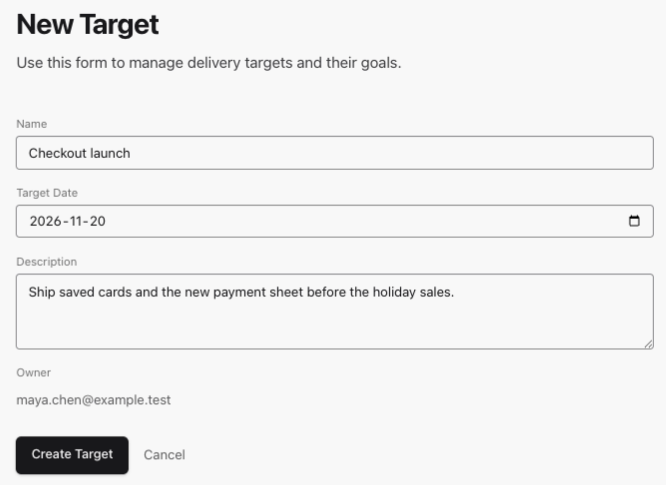
Click New Target. Name and Target Date are required, and Description is optional. Anyone signed in can create a target, and Owner shows that it's yours.
Click Create Target. Stride opens the target's edit page so you can add goals.
Adding Goals
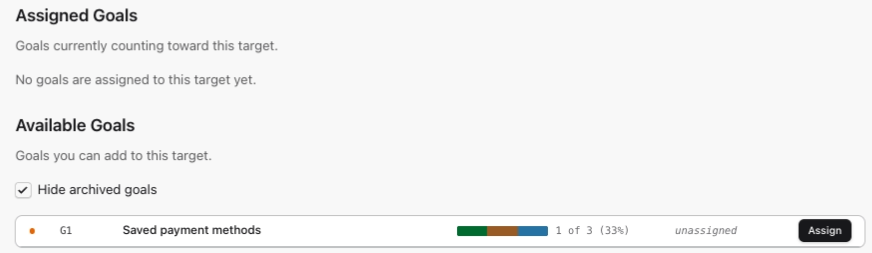
The edit page lists Assigned Goals and Available Goals. Click Assign to add a goal, or Unassign to take it off.
Available goals are goals on boards you can open that aren't in a target yet. A goal belongs to one target at a time, so the other target's owner has to unassign it first. Hide archived goals starts ticked.
To assign a goal you need owner or modify access on its board, otherwise Stride says Could not assign goal. Who works on a goal is set on the goal itself, as Using Stride With a Team explains.
Editing a Target
Click Edit target on the target's page, change its details, and click Save Target, which takes you back to the Boards page. Only the target's owner can edit it. Anyone else sees Only the target owner can edit this target.
The Target Page
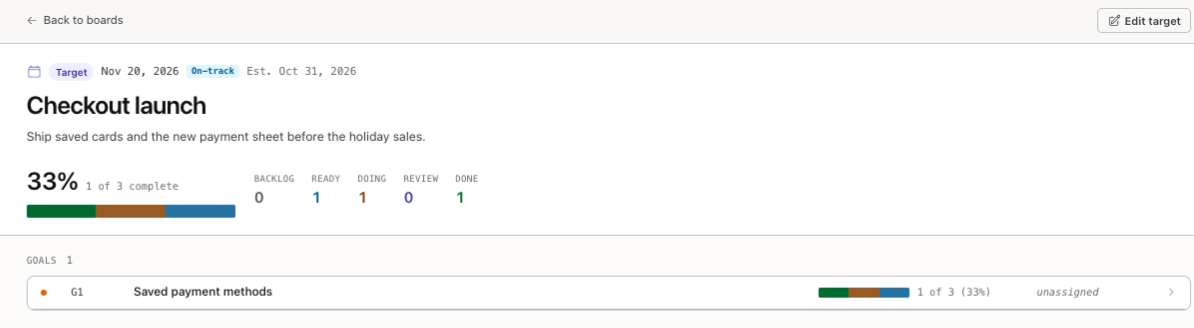
Click a target in the strip to open its page. It shows the date and status, the estimated completion date, and a bar of the goals' tasks by Backlog, Ready, Doing, Review and Done. Under Goals, each goal shows its own progress, and clicking it opens the goal page.
Only the owner can open a target's page. Anyone else who clicks it sees Target not found, even though the target is in their strip.
Progress and Status
Progress counts the tasks under the target's goals. An archived task counts only if it was completed.
- Complete: every goal is done.
- Missed: the date has passed.
- At-risk: the share of work done trails the share of time gone by more than 15 points, or the estimated completion is after the date. The estimate comes from how long tasks have been taking on those boards.
- On-track: anything else, including a target with no goals.
The Agents page shows the same statuses, as Watching Your Agents explains.
Archiving a Finished Target
Once a target is Complete, its owner sees Archive target on its page. Confirm, and the target leaves the strip and the Agents page. Only a complete target can be archived, so a target with no goals never can.
Archived Targets
Archived targets in the Boards header lists them. Click Unarchive to bring one back. The owner can do this at any time. The list also shows colleagues' archived targets with goals on your boards, but only a target's owner can unarchive it. Anyone else gets Target not found. When there are none, the page says No archived targets.
The Goal Page
Open a goal from its card on a board, from the target page, or from My Work. Members of the board can open it.
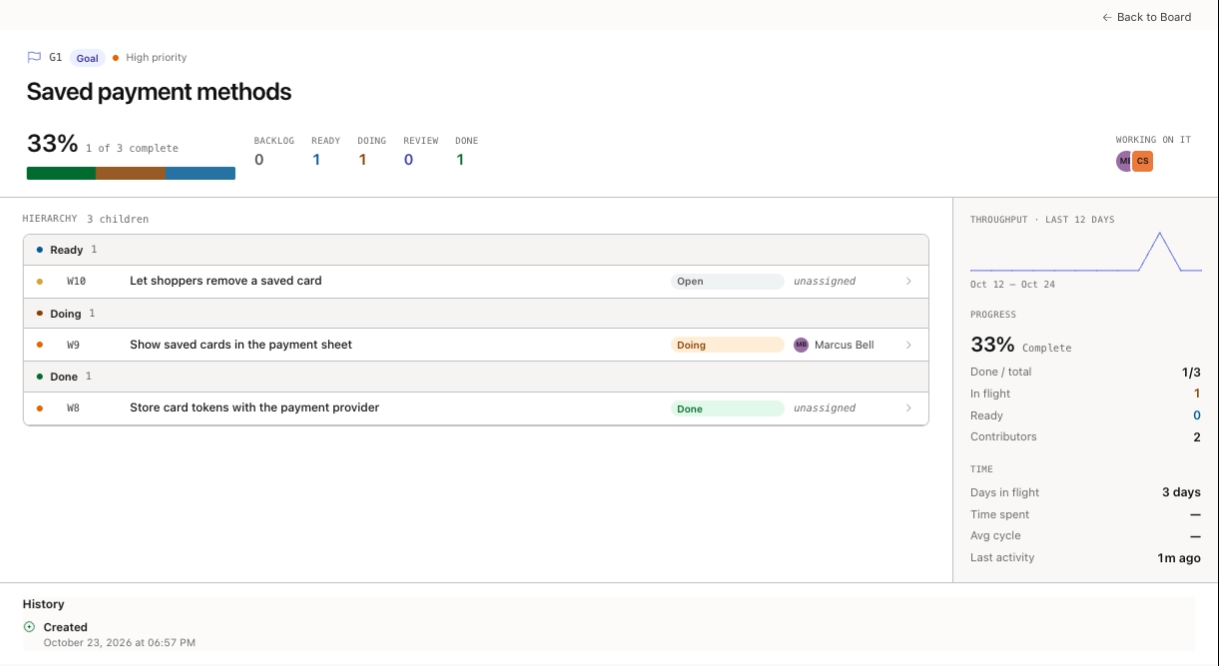
- The header shows the goal's progress by column, and Working on it shows the people and agents involved.
- Hierarchy lists the goal's tasks by column. Clicking one opens it for editing, which needs owner or modify access. A read-only member is sent back to the board with a message saying they don't have permission.
- Progress and Time on the right sum up how it's going.
- History records changes to the goal itself, such as Assigned to, Reassigned and Priority changed.
Back to Board returns to the board.
You're all set!
You've completed all the steps in this guide.