Understanding Board Columns and Workflow
Discover how columns help organize your tasks and create efficient workflows.
What Are Columns?
Columns represent stages in your workflow. Tasks move from left to right as they progress through different stages toward completion. Stride offers two types of boards with different column configurations.
AI-Optimized Boards: Fixed Columns
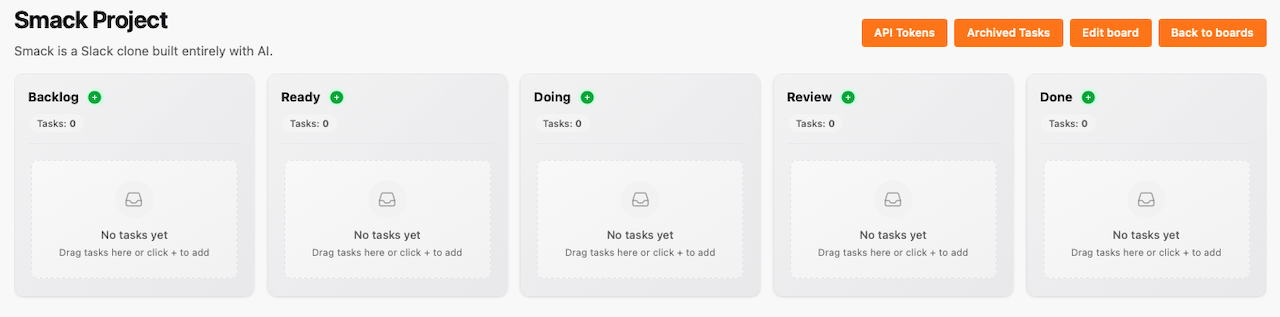
AI-optimized boards come with five pre-configured columns designed for AI agent workflows. These columns cannot be added, removed, or renamed:
- Backlog: Tasks that are not yet ready to be worked on
- Ready: Tasks available for AI agents to claim
- Doing: Tasks currently being worked on
- Review: Tasks awaiting human review
- Done: Completed tasks
Custom Boards: Flexible Columns
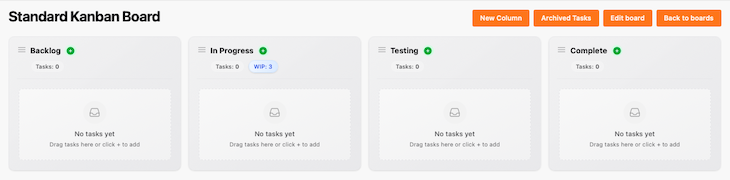
Non-AI optimized boards give you complete flexibility to design your own workflow. You can:
- Create any number of columns with custom names
- Add new columns by clicking Add Column
- Reorder columns by dragging them
- Rename or delete existing columns
- Design workflows like Backlog → In Progress → Testing → Complete or any pattern that fits your team's needs
Choosing the Right Board Type
When creating a board, select:
- AI Optimized Board if you'll be working with AI agents or want a standardized agent-friendly workflow
- Empty Board if you need custom columns tailored to your team's specific process
WIP Limits (Custom Boards Only)
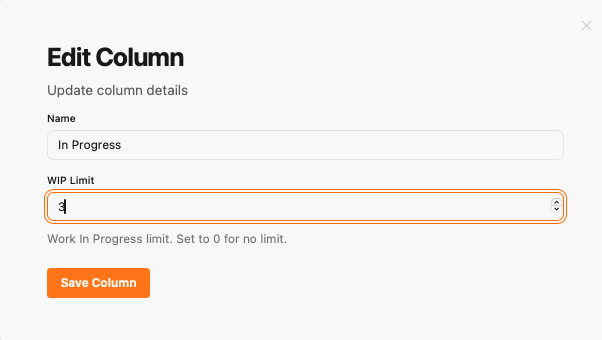
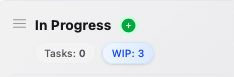
Only Custom Boards support WIP (Work In Progress) limits on each column. WIP limits prevent bottlenecks by restricting how many tasks can be in a column at once, keeping work flowing smoothly through your workflow.
AI-Optimized Boards do not support WIP limits — their five-column structure is fixed by design so AI agents can rely on a consistent workflow.
You're all set!
You've completed all the steps in this guide.