Creating Your First Board
Learn how to create and configure a new Stride board for your team or project.
Access Your Boards Dashboard
After logging in, you'll automatically land on your My Boards dashboard. If you're navigating from elsewhere in the app, you can always return here by clicking My Boards in the navigation bar.

Click New Board
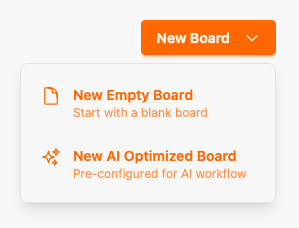
Click the New Board button in the top right corner. You'll see two options: New Empty Board for a blank slate, or New AI Optimized Board which comes pre-configured with columns optimized for AI agent workflows.
Enter Board Details
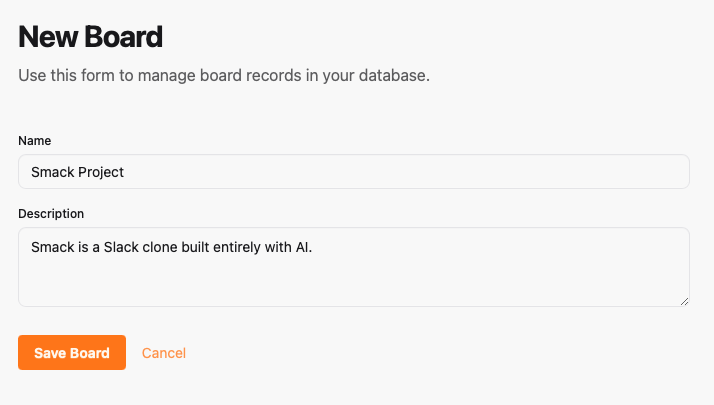
Give your board a descriptive name and optional description. The name should reflect the project or team that will use this board.
Start Using Your Board
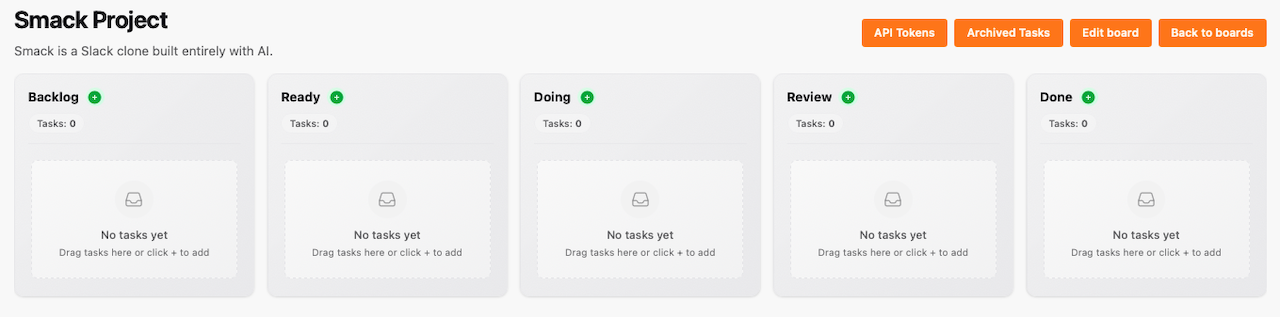
Your AI Optimized board is ready with pre-configured workflow columns (Backlog → Ready → Doing → Review → Done). To invite team members, click the Edit Board button and add collaborators in the board settings.
You're all set!
You've completed all the steps in this guide.