Setting Your Organization's Security Policy
For org-admins: require two-factor authentication for every member, choose a grace period, and decide how long audit events are kept.
Opening the Security Policy
In the Organization console, click Security. Only org-admins can open or change this page. Both of its settings are saved together with Save security policy.
Requiring Two-Factor
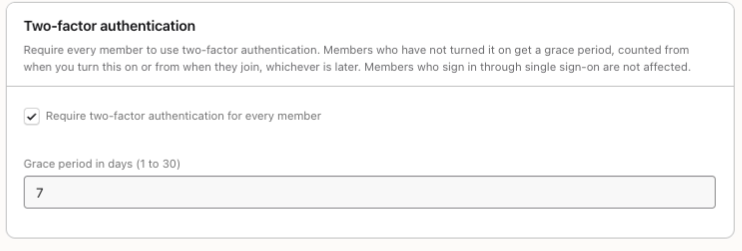
Under Two-factor authentication, tick Require two-factor authentication for every member and set the grace period: from 1 to 30 days, 7 unless you change it. Then click Save security policy.
Each member's grace period counts from when you turned the requirement on or from when they joined, whichever is later.
What Members See
Until they turn two-factor on, members see a banner with their deadline that they can't dismiss. After the deadline, every signed-in page sends them to their two-factor settings until it is on. While it is required, they can't turn two-factor off. Setting Up Two-Factor Authentication is the guide to send them.
Members who sign in through single sign-on are not affected, because your identity provider handles the second step. API tokens keep working either way.
Changing the Grace Period
Shortening the grace period while the requirement is on restarts everyone's clock from that moment, so nobody's deadline jumps into the past. Lengthening it simply moves the deadlines later. Turning the requirement off and on again also restarts the clock.
Audit Log Retention
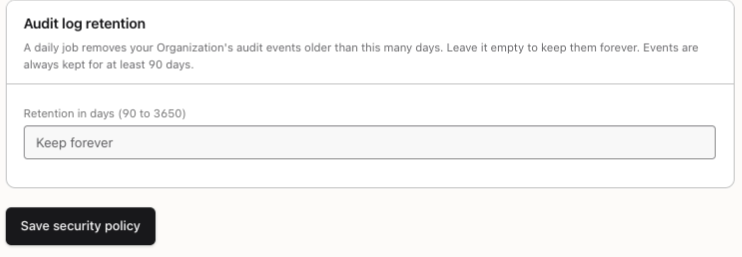
Under Audit log retention, enter how many days to keep your Organization's audit events, from 90 to 3650, and click Save security policy. A daily job then removes older events.
Leave the field empty, as its Keep forever placeholder says, to keep every event.
You're all set!
You've completed all the steps in this guide.