Your Work Across Boards
See every open task assigned to you, across all your boards, in one list with the most urgent first.
Opening My Work
Click My Work in the sidebar. Everyone signed in has it, on every plan.
What's Listed
My Work lists the tasks assigned to you that aren't completed or archived, including goals, defects and blocked tasks. Anything in a Done column is left out.
Only boards you belong to count, including the boards you manage as an org-admin. A shared board you never joined, or a board you've been removed from, doesn't appear.
How It's Ordered
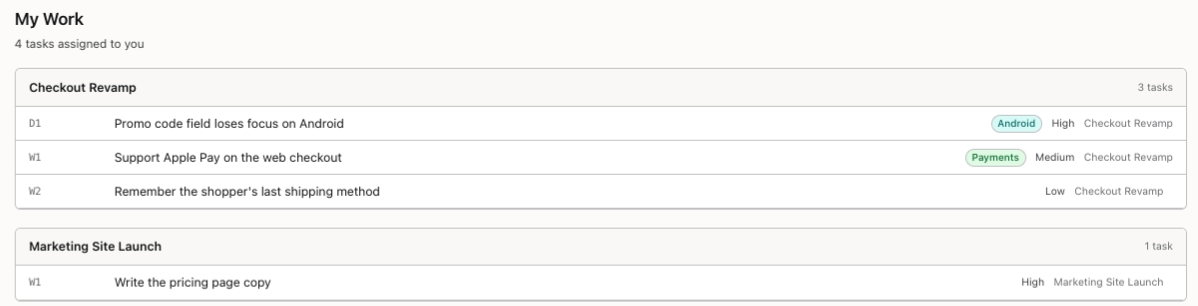
Tasks are grouped into one card per board, with the boards in alphabetical order. Inside a board they run Critical, High, Medium, Low, then by ID. Each row shows the task's ID, title, up to three labels, priority and board.
Tasks have no due dates of their own. Dates come from delivery targets, as Planning With Targets explains.
Opening a Task
- Click the board's name to open the board.
- Click a goal to open its goal page.
- Click a task to open it for editing.
- On a board where you're read-only, a task opens the board searched for that task's ID instead.
Keeping It Current
The list is loaded when you open the page and doesn't update by itself, so reload it to see new work. When nothing is assigned to you, it says Nothing assigned to you. To learn how work gets assigned, see Using Stride With a Team.
You're all set!
You've completed all the steps in this guide.