Finding Work With Search and Filters
Search a board by title or ID, filter it by type, priority, assignee or label, share the filtered view, and use the keyboard shortcuts.
The Filter Bar
The bar above a board's columns searches and filters its cards. Everyone who can open the board can use it, including read-only members and people viewing a shared board. For a quick tour of the board as a whole, see Monitoring Task Progress.
Searching
Type in Search title or ID to narrow the board as you type. It matches part of a task's title or its ID, such as W12, ignoring capitals. It doesn't search descriptions. A search can be up to 100 characters.
Each column then shows how many of its cards match, out of how many it holds, and columns with no matches say so.
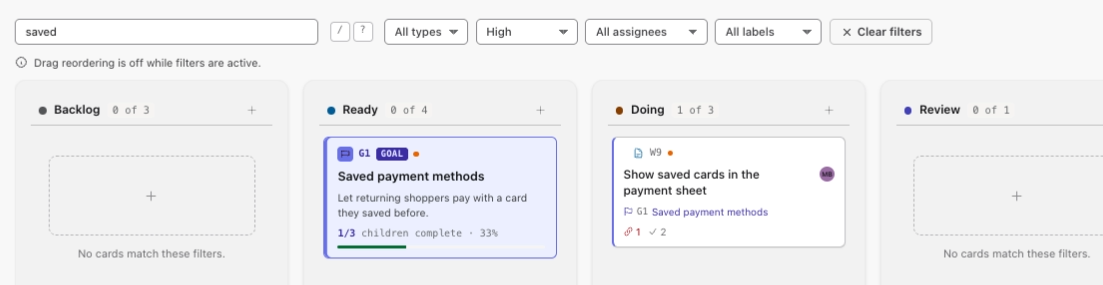
Filtering
Use the menus beside the search box:
- All types: Work, Defect or Goal.
- All priorities: Low, Medium, High or Critical.
- All assignees: a member, or Unassigned.
- All labels: one of the board's labels. This menu only appears once the board has labels.
Search and filters combine, so a card must match all of them. A goal stays on the board while one of its tasks matches, so you can see what the task belongs to.
Sharing a Filtered View
The search and filters are kept in the page's address. Reloading the page or going back keeps them, and sending the link to a teammate shows them the same filtered board. Clear filters shows every card again.
Reordering While Filtered
Dragging cards to reorder them is off while a search or filter is active, because the board can't place a card between cards it's hiding. People who can move cards see Drag reordering is off while filters are active. under the bar. Clear the filters to drag again.
Keyboard Shortcuts
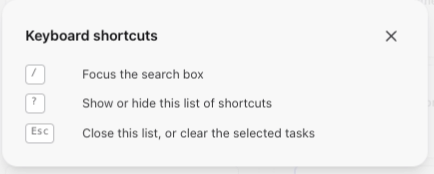
/puts the cursor in the search box.?shows or hides the Keyboard shortcuts list.- Esc closes that list, or clears the cards you've selected for a bulk action.
The shortcuts don't fire while you're typing in a field.
You're all set!
You've completed all the steps in this guide.